How to Use Google Sheets Query
Learn what the Google Sheets QUERY function is, how to use it, and why it may benefit your data management.
![[Featured Image] A person is showing two people a spreadsheet he has created to organize and group their inventory using the query function in google sheets.](https://d3njjcbhbojbot.cloudfront.net/api/utilities/v1/imageproxy/https://images.ctfassets.net/wp1lcwdav1p1/3Hmq8PGASUF9HKHfVja4oH/e48a83081299ae5b3f847e665fedf68e/GettyImages-597316723.jpg?w=1500&h=680&q=60&fit=fill&f=faces&fm=jpg&fl=progressive&auto=format%2Ccompress&dpr=1&w=1000)
Key takeaways
You can implement the Google Sheets QUERY function by using a specific syntax to define your data queries and perform specified operations.
The syntax for the Google Sheets QUERY function is =QUERY(data, query, [headers]).
Using the QUERY function, you can order, extract, group, and manipulate data in your spreadsheet.
You can choose to combine QUERY functions in Google Sheets based on your data management needs.
Find out how to use the Google Sheets QUERY function, including solutions to common errors. Afterward, if you’re starting a career in cloud computing, consider enrolling in the Preparing for Google Cloud Certification: Cloud DevOps Engr Professional Certificate. Beginner-friendly, this program offers guidance on cloud infrastructure, containerization, application deployment, cloud security, and more.
What is the QUERY function in Google Sheets?
The Google Sheets QUERY function is one of the most useful and diverse functions in Google Sheets. This function allows you to order, extract, group, and manipulate data in your spreadsheet. You can use this tool in ways similar to filters and pivot tables. Experimenting with the QUERY function can help you learn the intricacies of this tool.
What is the Google Sheets QUERY syntax?
Before you can use the QUERY function effectively, you will need to understand the QUERY syntax. The QUERY function uses a specific syntax to define your data queries and perform specified operations. This syntax is similar to structured query language (SQL), a standard programming language for database management. When you begin, you can follow this syntax.
=QUERY(data, query, [headers])
data: Specify the range of cells containing your data, including the headers. For example, A1:D100.
query: Construct your query using SQL-like syntax to define the criteria for data retrieval. This includes selecting columns, filtering rows, sorting data, and more.
headers: (optional) Specify the number of header rows in your data range. By default, the function assumes headers are the first row.
Read more: What Are SQL queries?
Google Sheets QUERY examples
You can construct your query by utilizing the SQL-like syntax. Here are some examples to become familiar with as you begin:
Select all columns: To select all columns in your data, use the asterisk (*) symbol. For example, SELECT *.
Specify columns: To select specific columns, list their headers separated by commas. For example, SELECT A, C, E.
Filter rows: Use the WHERE clause to filter rows based on specific conditions. For example, WHERE B > 100.
Sort data: Use the ORDER BY or GROUP BY clause to sort data based on one or more columns.
Aggregate functions: Utilize aggregate functions like SUM, COUNT, and AVERAGE to perform calculations on selected data.
What is the difference between VLOOKUP and QUERY in Google Sheets?
VLOOKUP can help you search your spreadsheet for related information by row. However, unlike QUERY, VLOOKUP can not perform data manipulation operations such as sorting or filtering.

How to use the Google Sheets QUERY function
In this example, we will be writing a QUERY function to extract the data from columns B and D.
1. Open Google Sheets.
Start by opening Google Sheets in your web browser. Sign in to your Google account if necessary. Make sure you organize your data in columns and rows, with headers in the first row. This will help you identify and reference your data accurately when using the QUERY function.
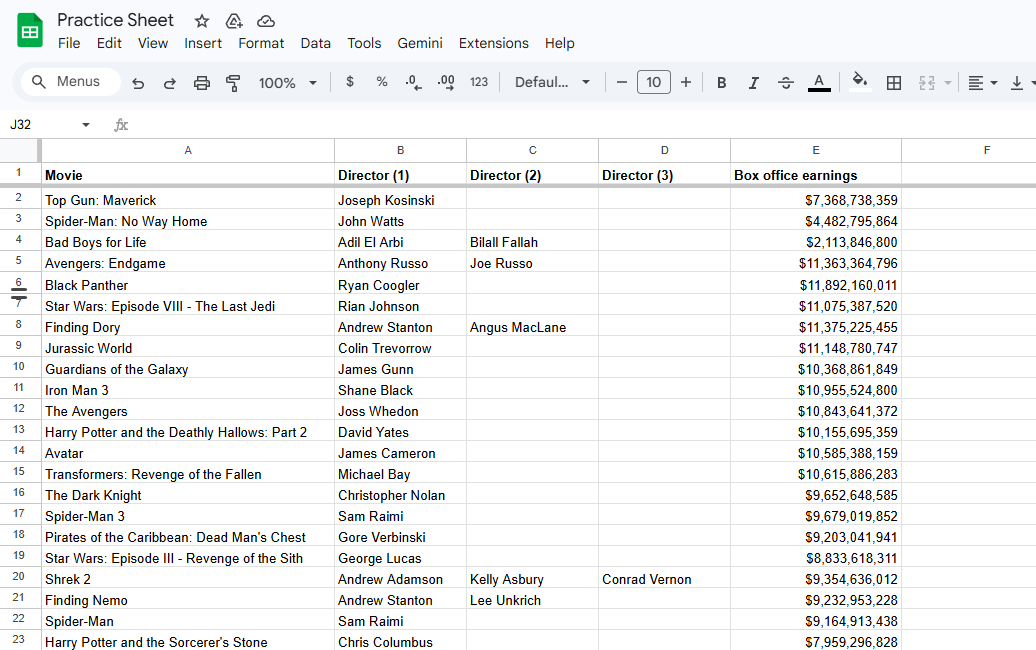
2. Select your data.
In the cell where you want the query results to appear, begin by typing the equal sign (=) followed by the QUERY function. Inside the function, you will provide the necessary arguments: the data range, the query itself, and the number of header rows (if applicable). In this example, we start by selecting all of our data.
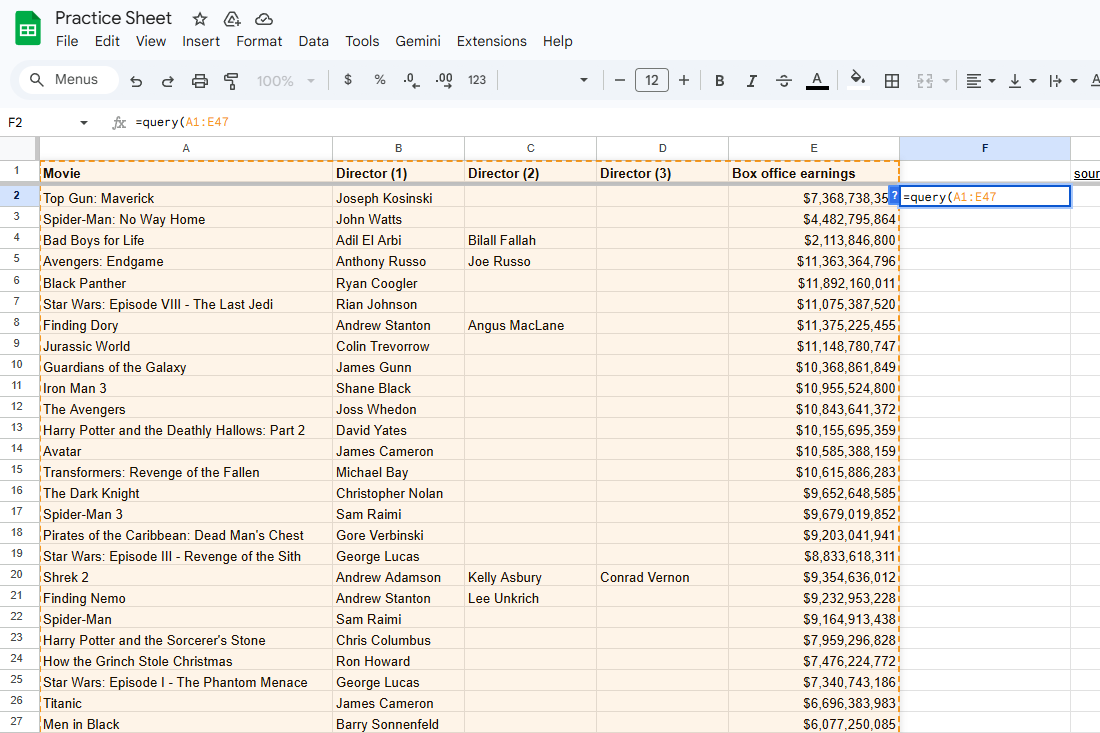
3. Choose your QUERY function.
Next, you will choose your QUERY function. In this example, we are extracting the data from columns A and E. To do this, we use the Select QUERY function and type "Select A, E".
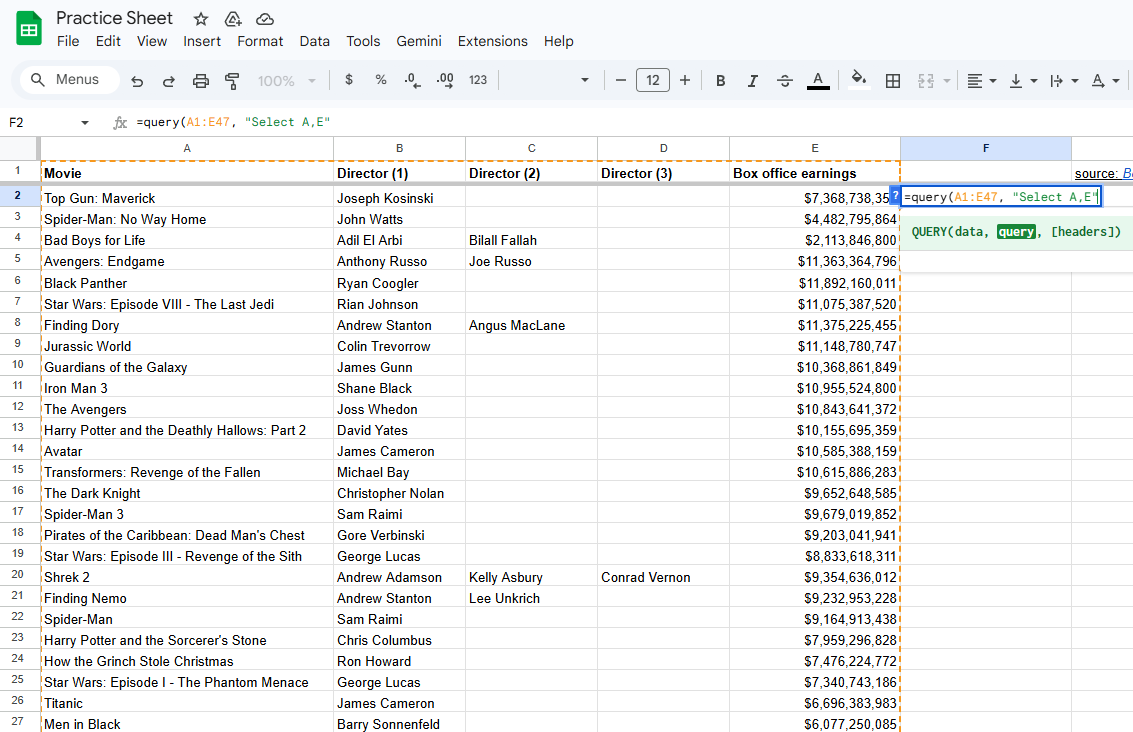
4. Input the number of headers.
Lastly, you will type in the number of header rows that appear in your data range. In this case, there is one. Type , 1) after your Select QUERY function.
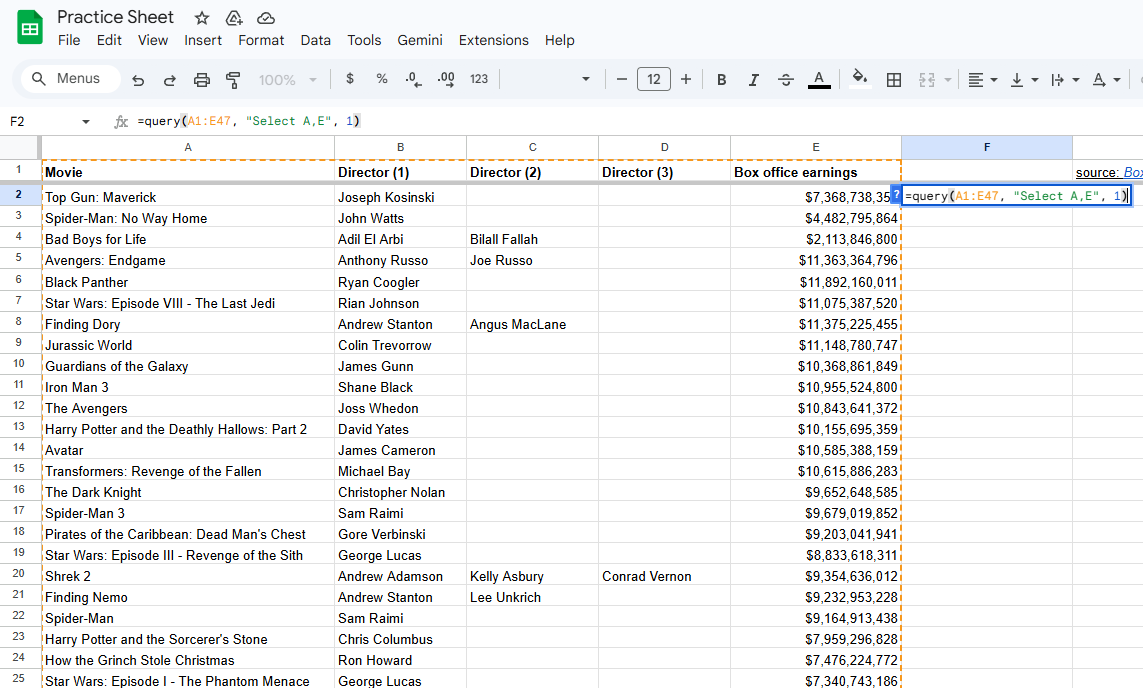
5. Observe your QUERY function results.
Once you've constructed your query and press Enter on your keyboard, you'll immediately see the results in the cell where you wrote the QUERY function. The data displayed will match the criteria and format defined in your query.
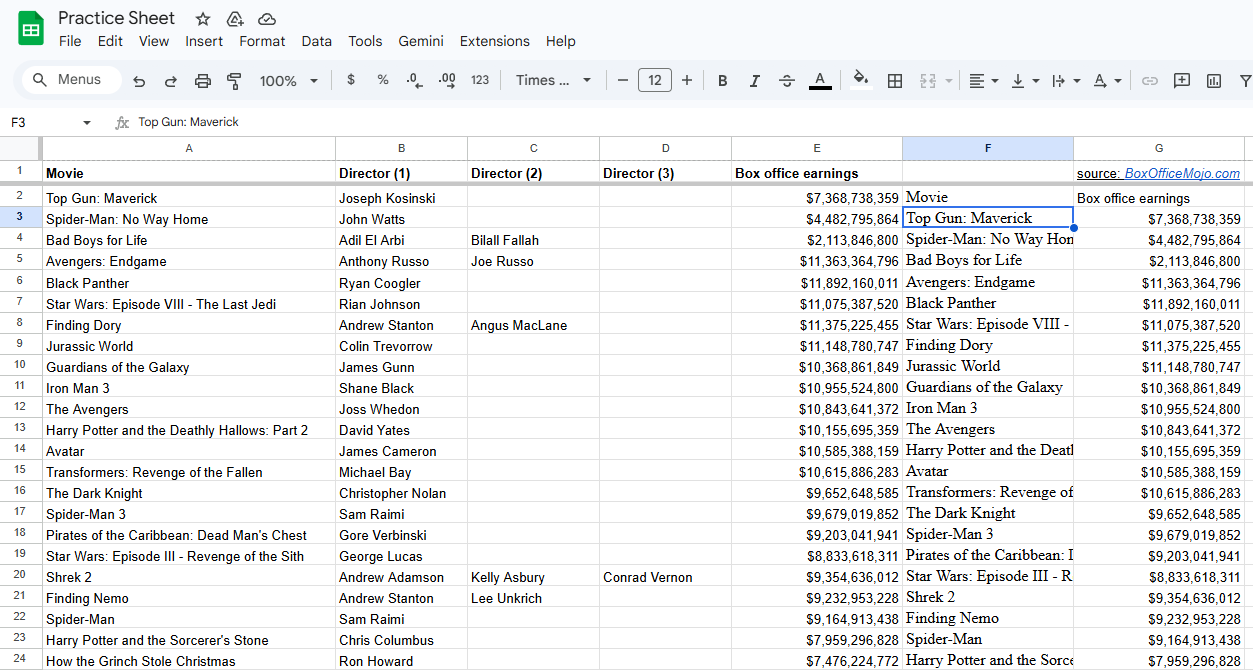
As you can see in this example, the information from columns A and E was copied into the columns where the QUERY function was written. You will want to make sure you do not have any data in the columns where you are typing your QUERY function and expecting new data to go.
Step summary: How to use Query in Google Sheets
When using the QUERY function, you will follow these general steps and alter them based on your end goal:
Open your Google Sheet with organized data.
Select your data.
Enter the QUERY function according to the =QUERY(data, query, [headers]) syntax.
View your output and adjust as needed.
Related Google Sheets QUERY function combinations and options
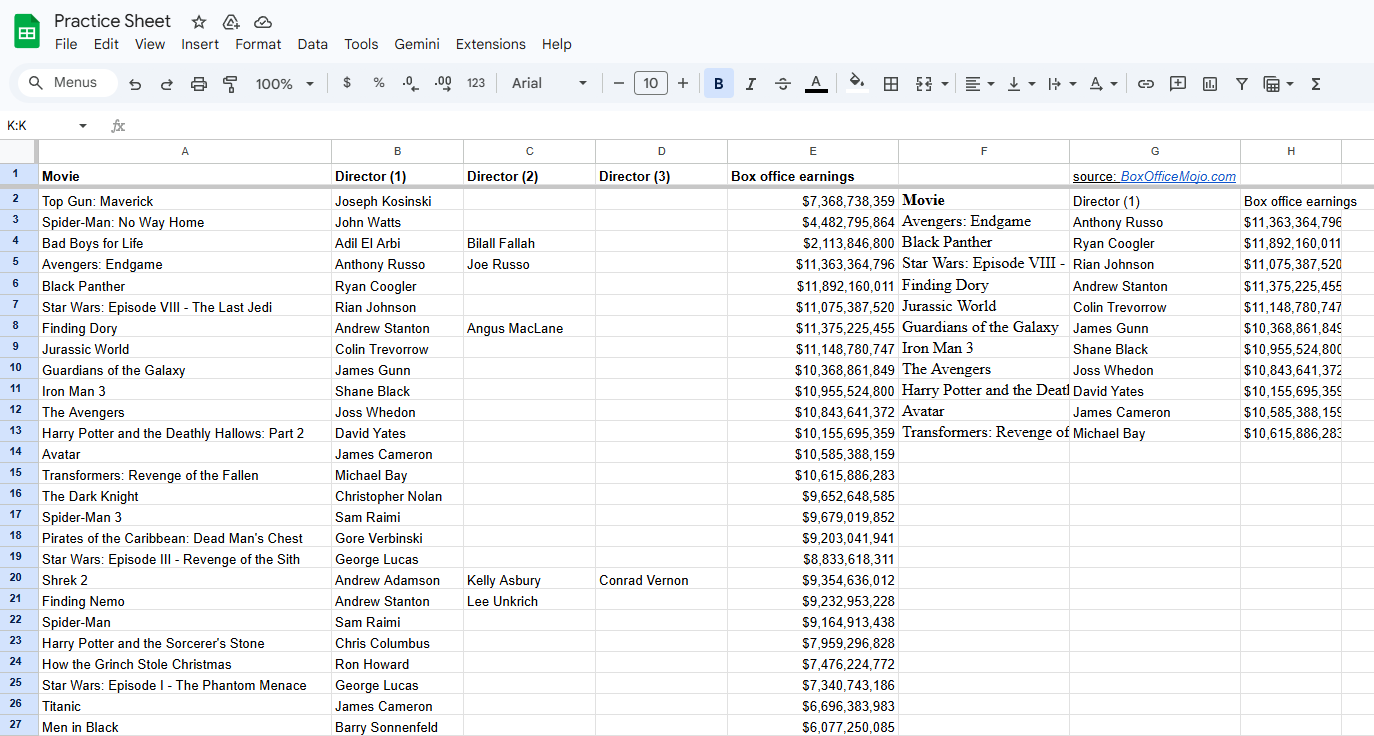
You can also combine the QUERY functions. For example, a QUERY function for our sample data could read:
=QUERY(A1:E47, "SELECT A, B, E WHERE E > 10000000000", 1)
The output of this function would look like the image below. As you can see, only the movies with box office earnings above $10,000,000,000 are selected.
Common errors
One of the most common errors is a syntax error in the query itself. You may experience this if you don't use the correct syntax for the query language, such as incorrectly specifying your data range or not using quotation marks around query functions. Forgetting to include the necessary quotation marks or adding extra ones can lead to errors, and you should be careful to match opening and closing quotation marks correctly.
Explore our free data analytics resources
Join Career Chat on LinkedIn for weekly updates on popular skills, certifications, and career-building advice. Discover more about data management and analytics with our other free digital resources:
Learn the terminology: Data Analysis Terms & Definitions
Hear from an expert: 6 Questions with a Microsoft Data Analytics Leader
Accelerate your career growth with a Coursera Plus subscription. When you enroll in either the monthly or annual option, you’ll get access to over 10,000 courses.


Coursera Staff
Editorial Team
Coursera’s editorial team is comprised of highly experienced professional editors, writers, and fact...
This content has been made available for informational purposes only. Learners are advised to conduct additional research to ensure that courses and other credentials pursued meet their personal, professional, and financial goals.